Canva Wedding Invitation: How to Design a Beautiful Wedding Invite Online
Not every couple has the budget or the desire to hire a professional designer for their wedding invitation, and honestly, they don't always need to. Can...
Not every couple has the budget or the desire to hire a professional designer for their wedding invitation, and honestly, they don't always need to. Canva has quietly become the go-to tool for couples who want a genuinely beautiful invite without spending a fortune, and once you know how to use it properly, the results can look surprisingly professional.
Not every couple has the budget or the desire to hire a professional designer for their wedding invitation, and honestly, they don't always need to. Canva has quietly become the go-to tool for couples who want a genuinely beautiful invite without spending a fortune, and once you know how to use it properly, the results can look surprisingly professional.
Why Canva Works So Well for Wedding Invitations
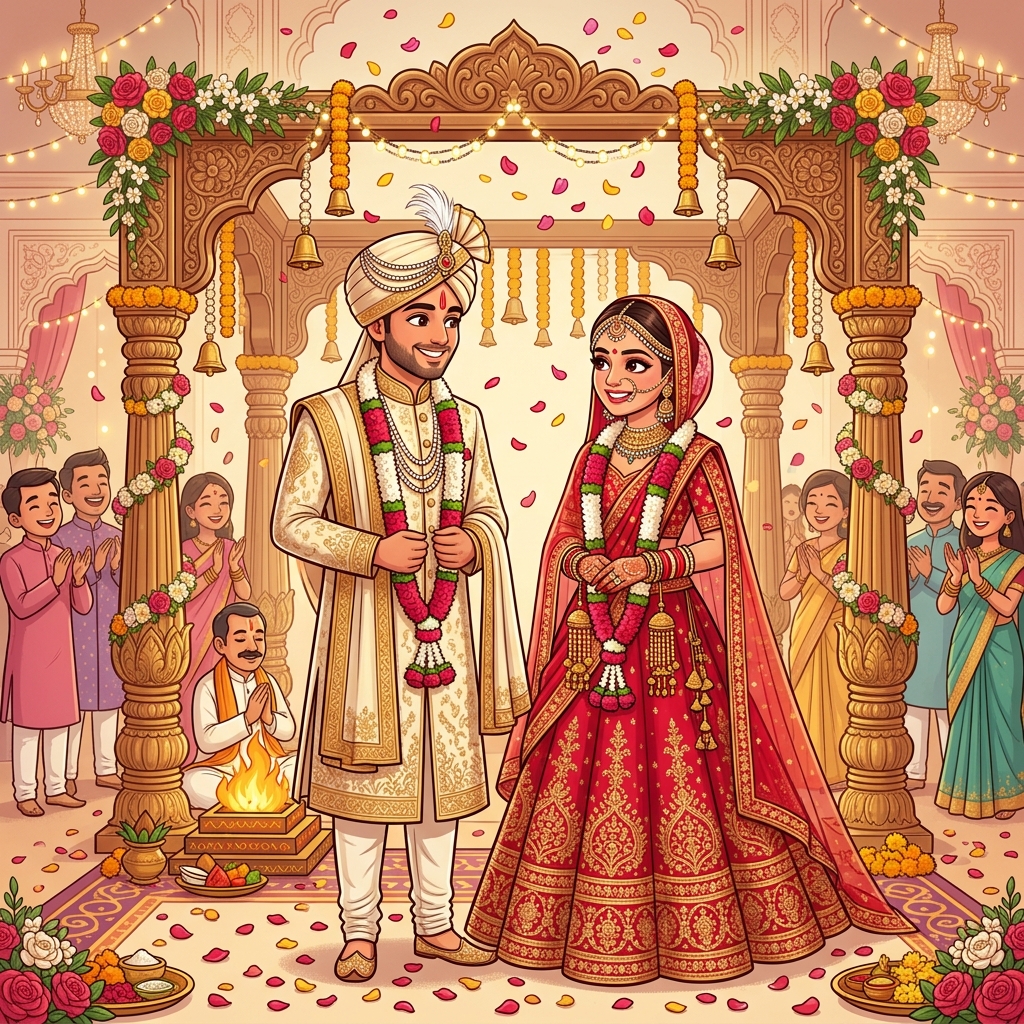
Canva's biggest strength is its massive library of pre-designed wedding invitation templates, many specifically created for Indian weddings, complete with mandala patterns, floral borders, and traditional color palettes like maroon, gold, and deep red. You don't need any design background — you simply pick a template that resonates with your wedding's theme and start customizing.
It's also free to start with, though a Canva Pro subscription unlocks premium templates, additional fonts, and useful features like background remover and animation options, which are genuinely worth it if you're designing a video invite too.
Getting Started: Choosing Your Template
Open Canva and search "wedding invitation" in the template search bar. You'll find hundreds of options — filter by style if you have something specific in mind, like "traditional Indian," "minimalist," or "floral." For video invitations, search specifically for "wedding invitation video" to see animated templates rather than static ones.
Pick a template that closely matches the color scheme and mood of your actual wedding. It's much easier to tweak an already-close template than to force a completely different style into your vision.
Customizing Text and Details
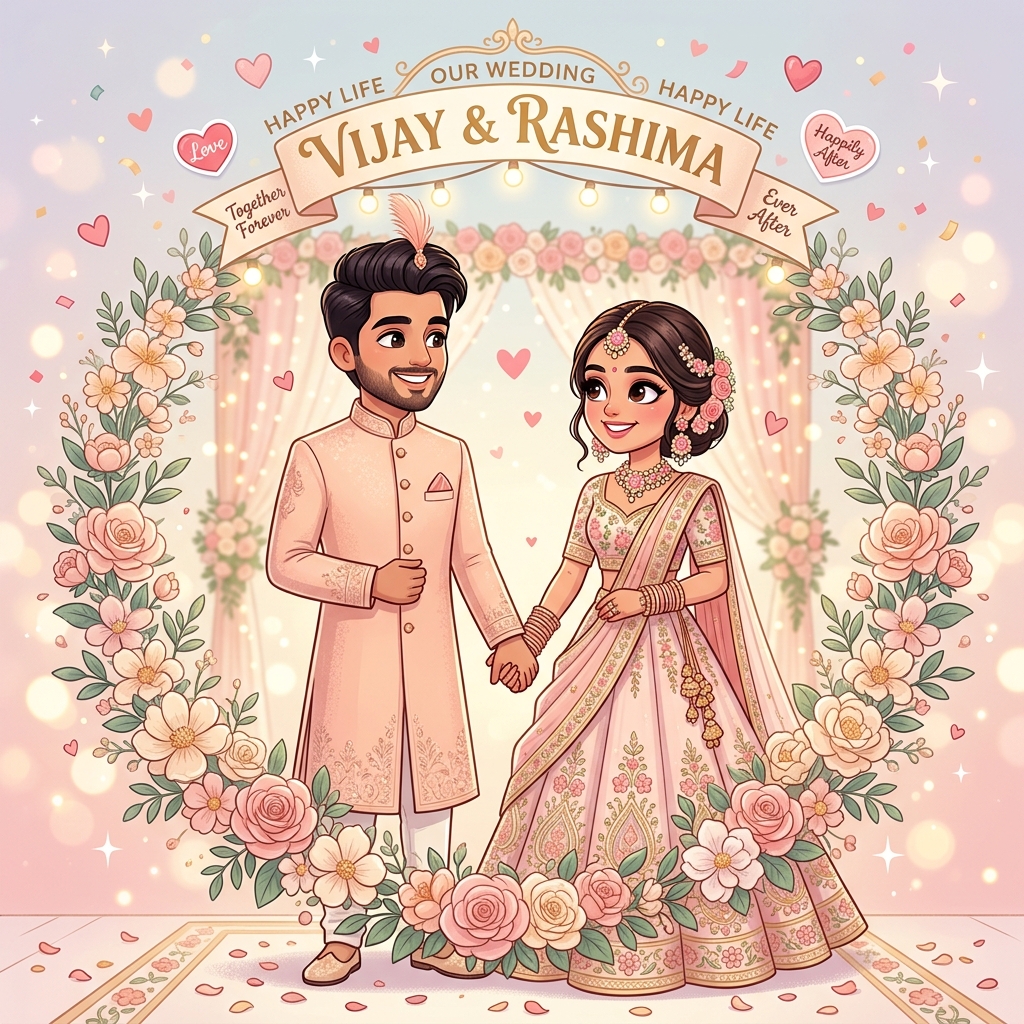
Once you've selected a template, click on each text box to edit it with your actual details — names, date, venue, and event schedule. Canva lets you change fonts easily, so if the default font doesn't feel right, browse through Canva's font library for something that better matches your wedding's personality, whether that's elegant script fonts for a traditional theme or clean sans-serif fonts for a modern one.
Pay close attention to text hierarchy. Your names and the wedding date should be the largest, most prominent text on the page, since that's the information guests need to absorb first at a glance.
Adding Your Own Photos
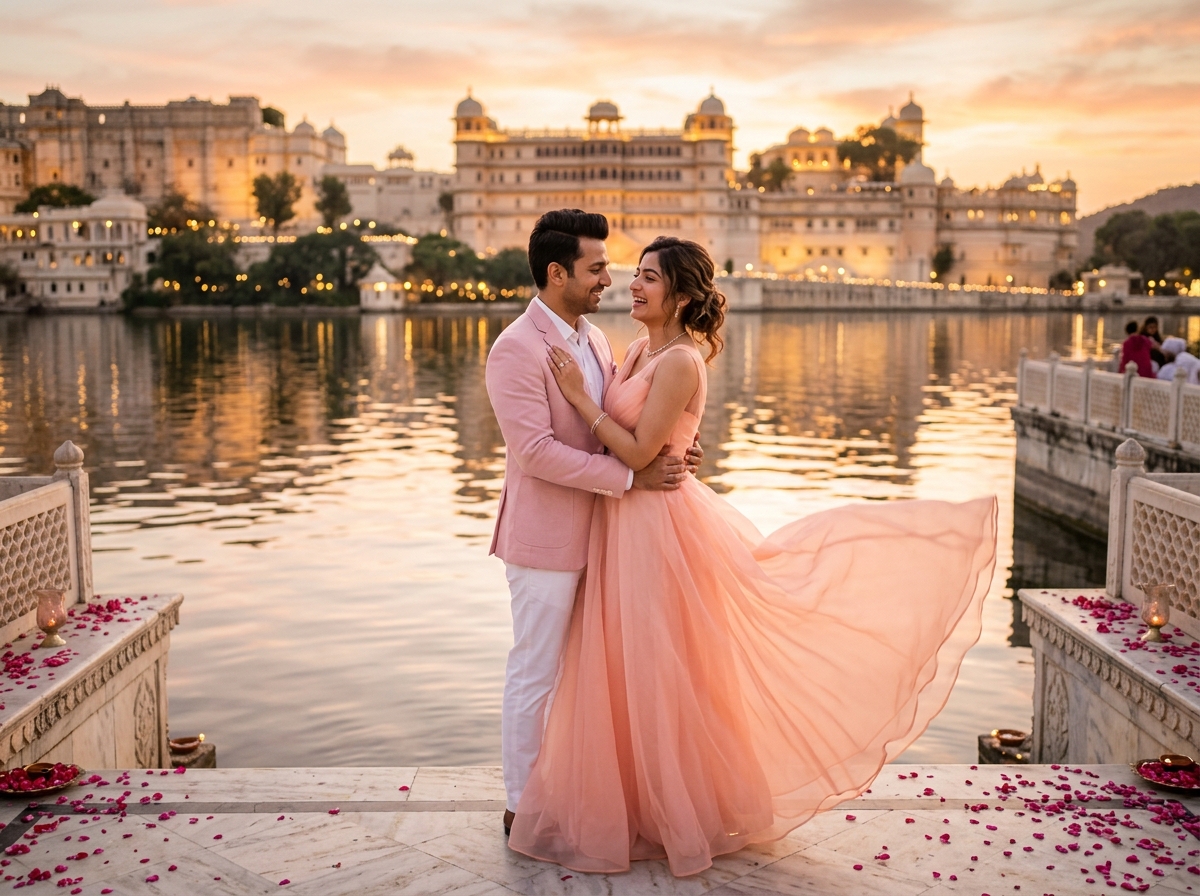
If you want to include a couple photo, click "Uploads" in the left sidebar and add your own image. Canva makes it easy to crop, add filters, or even remove the background entirely (with Canva Pro) if you want to place your photo against a custom illustrated backdrop instead of the original background.
For a cohesive look, apply the same photo filter or color tone across all your event invites if you're creating multiple cards for haldi, mehendi, and the wedding day.
Customizing Colors to Match Your Wedding Theme
Click on any design element and use the color picker to adjust it to your exact wedding color palette. This is particularly useful if your invitation cards, decor, and outfits all need to feel visually connected as part of one cohesive wedding brand.
Creating a Video Invitation in Canva
If you're using one of Canva's animated templates, you can adjust the timing and style of animations directly within the editor. Add background music from Canva's built-in audio library, making sure to pick something that matches your wedding's tone. Once you're happy with the preview, export it as an MP4 file, ideally in a vertical format for easy WhatsApp and Instagram sharing.
Common Canva Mistakes to Avoid
A frequent mistake is using too many different fonts on one invite, which makes it look cluttered rather than elegant — stick to two, maybe three fonts maximum. Another common issue is exporting at a low resolution, making the final image blurry when zoomed in on a phone screen; always export at the highest quality setting Canva offers.
Also, be mindful of copyright when using stock photos or icons from Canva's library, especially if you're using something highly identifiable, since not every free asset is genuinely free for commercial or public sharing use — check the licensing details if you're unsure.
When to Consider Hiring a Designer Instead
Canva is fantastic for straightforward, template-based designs, but if you want something entirely custom — a unique illustrated scene, complex 3D animation, or a fully personalized wedding website — a professional designer will get you there faster and with a more polished, original result than Canva's template system can offer.
Final Thoughts
For couples who want a beautiful, personalized wedding invitation without a big budget or design experience, Canva genuinely delivers. Spend a little extra time getting the details right — correct spellings, clear hierarchy, and high-resolution exports — and you'll end up with an invite that looks like it came from a professional studio, at a fraction of the cost.
Need a wedding invitation that feels like you?
Explore our shareable digital cards and website templates, or tell us about your celebration directly on WhatsApp.
Chat on WhatsApp